 fluttercn
Components
Text Field
A customizable text input component for single-line and multi-line text entry
Installation
fluttercn add text-fieldUsage
Basic Text Field
Simple text input:

TextField(
  controller: controller,
  placeholder: 'Enter text here',
)
Text Field with Label
Text field with label and description:
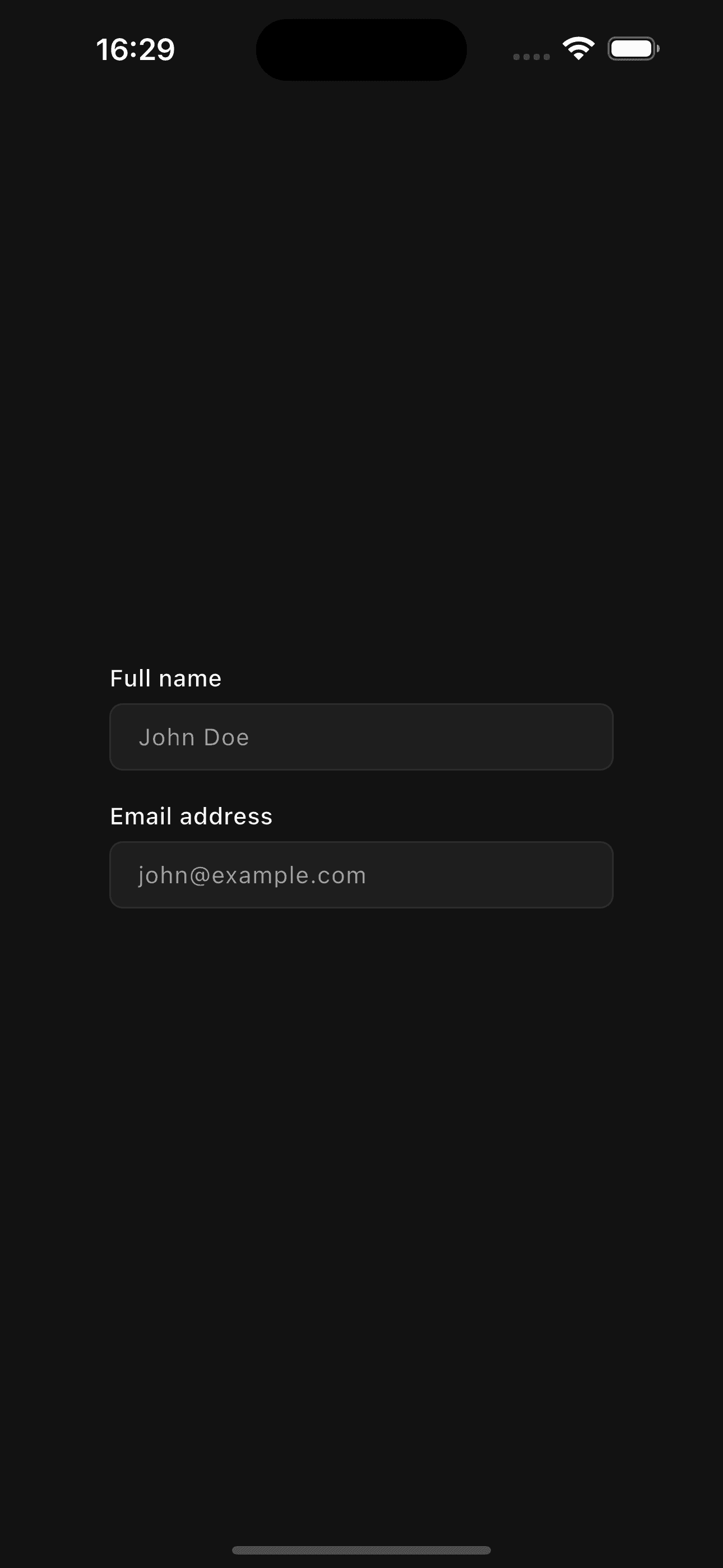
TextField(
  controller: controller,
  label: 'Full Name',
  description: 'Enter your first and last name',
  placeholder: 'John Doe',
)
Sizes
Three predefined sizes for different contexts:
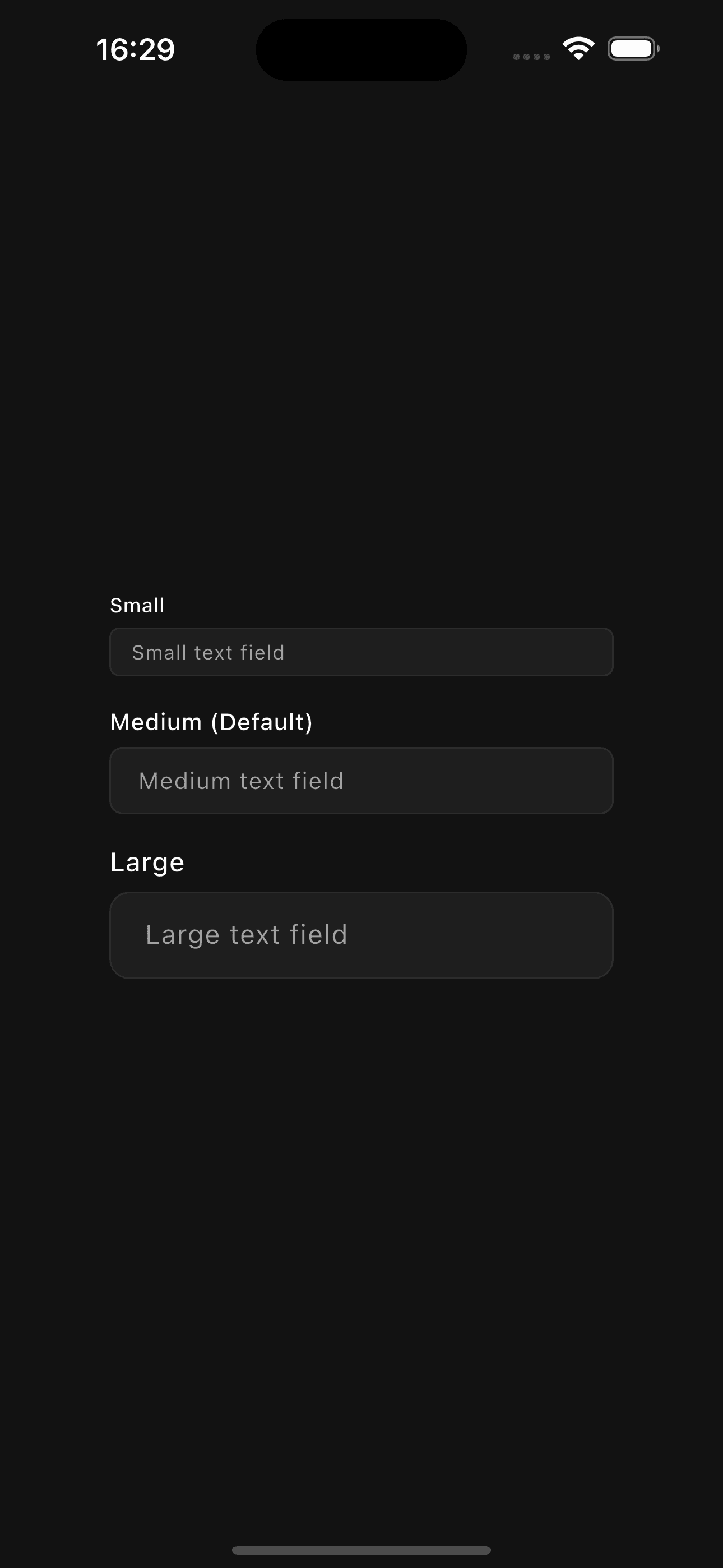
// Small
TextField(
  controller: controller,
  size: TextFieldSize.sm,
  placeholder: 'Small text field',
)

// Medium (default)
TextField(
  controller: controller,
  size: TextFieldSize.md,
  placeholder: 'Medium text field',
)

// Large
TextField(
  controller: controller,
  size: TextFieldSize.lg,
  placeholder: 'Large text field',
)
With Icons
Add prefix or suffix icons:
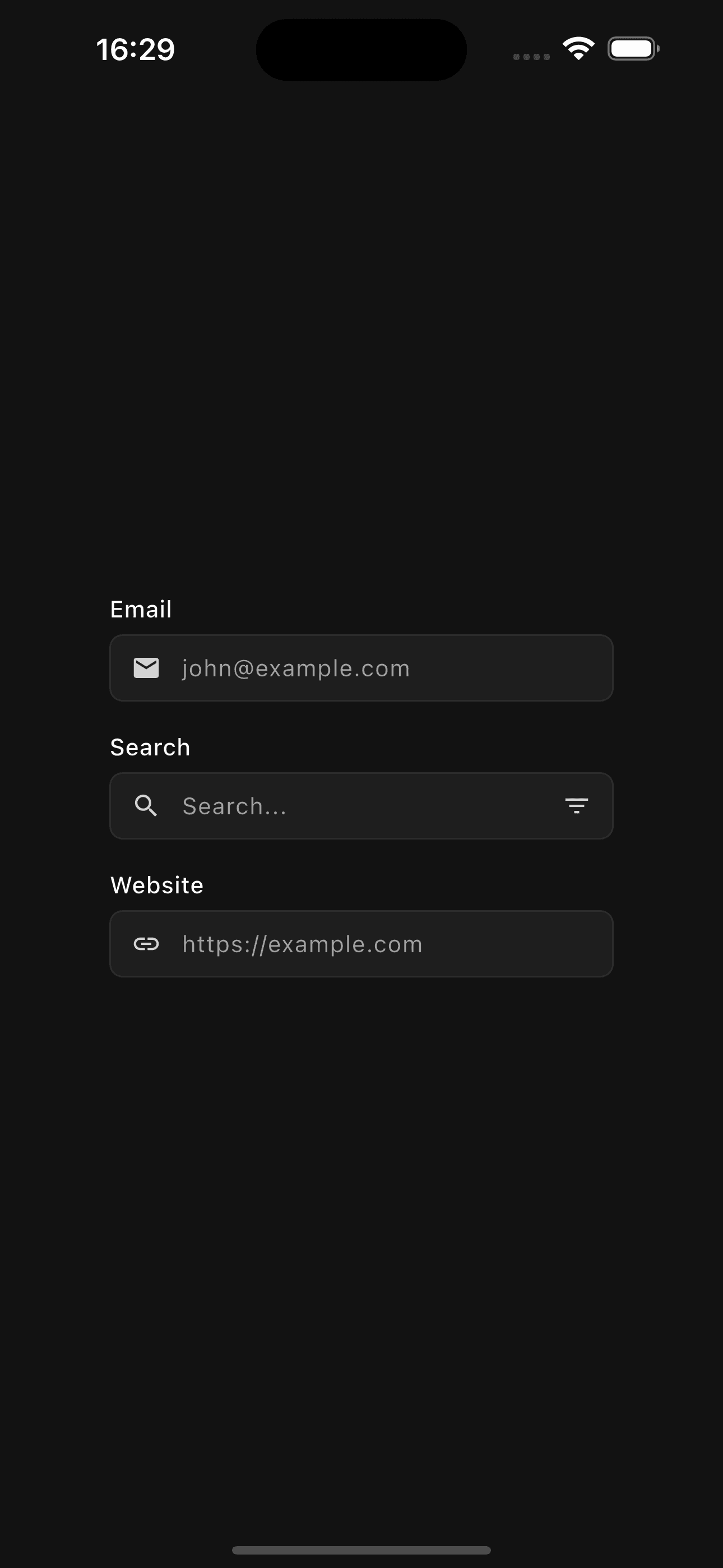
// Prefix icon
TextField(
  controller: emailController,
  label: 'Email',
  placeholder: 'you@example.com',
  prefixIcon: Icons.email,
)

// Suffix icon
TextField(
  controller: searchController,
  placeholder: 'Search...',
  suffixIcon: Icons.search,
)
Password Field
Text field with password visibility toggle:
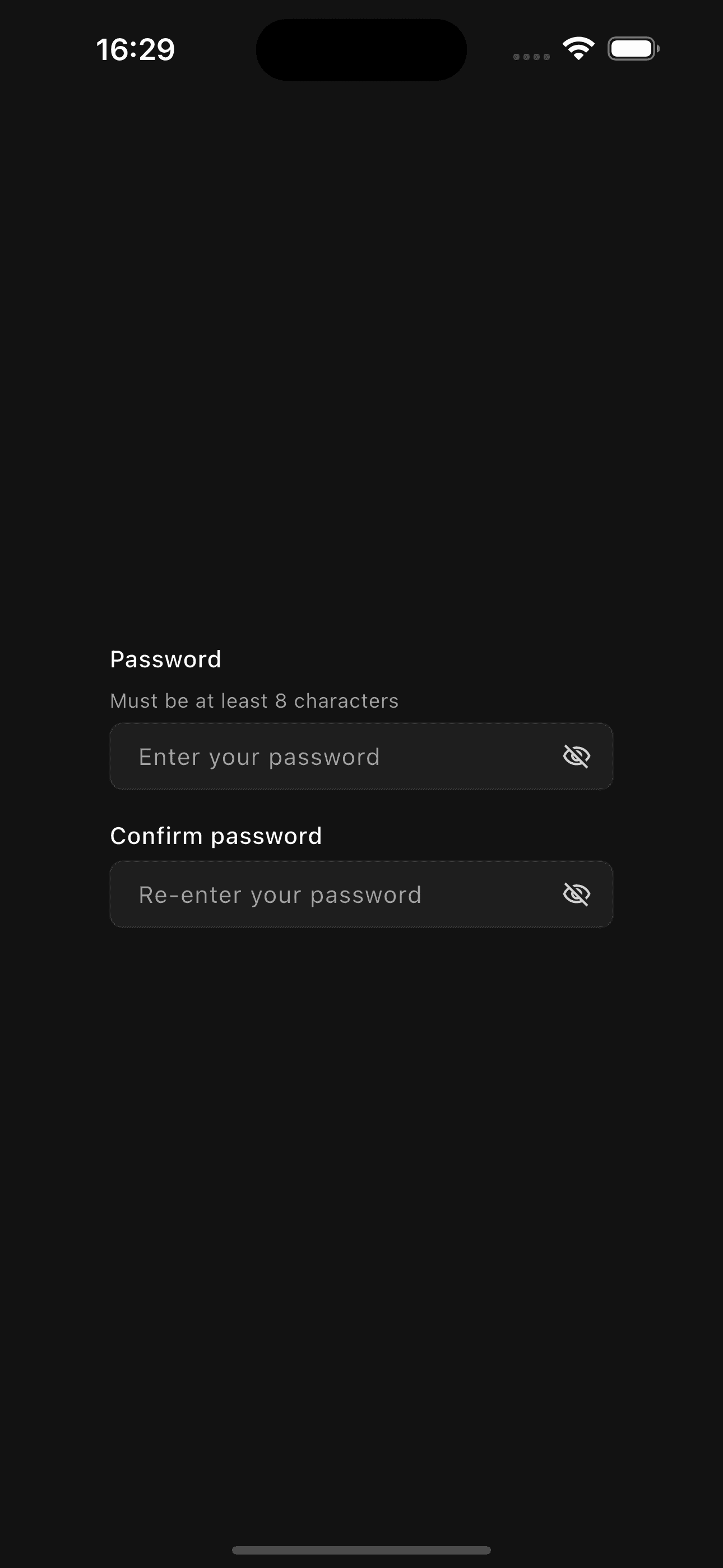
TextField(
  controller: passwordController,
  label: 'Password',
  placeholder: 'Enter your password',
  obscureText: true,
  prefixIcon: Icons.lock,
)
Multi-line Text Field
Text area for longer content:
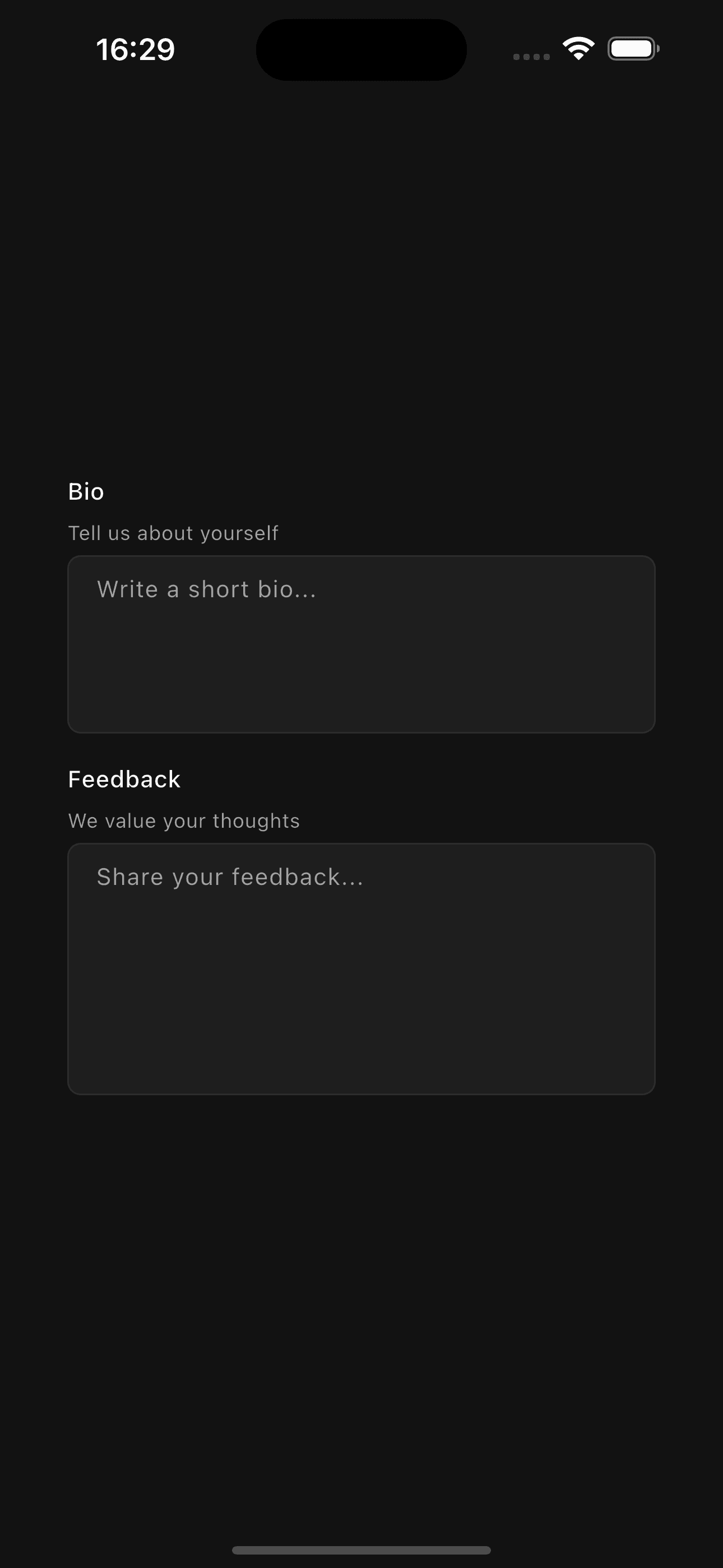
TextField(
  controller: bioController,
  label: 'Bio',
  placeholder: 'Tell us about yourself',
  maxLines: 4,
  minLines: 3,
)
Error State
Show validation errors:

TextField(
  controller: controller,
  label: 'Email',
  placeholder: 'you@example.com',
  error: true,
  errorText: 'Please enter a valid email address',
  prefixIcon: Icons.email,
)
Read-only State
Display text without allowing edits:

TextField(
  controller: controller,
  label: 'Account ID',
  readOnly: true,
)
Examples
Login Form

Column(
  crossAxisAlignment: CrossAxisAlignment.start,
  children: [
    Text(
      'Sign In',
      style: TextStyle(
        fontSize: 24,
        fontWeight: FontWeight.bold,
      ),
    ),
    SizedBox(height: AppTheme.spaceMd),
    TextField(
      controller: emailController,
      label: 'Email',
      placeholder: 'you@example.com',
      prefixIcon: Icons.email,
      keyboardType: TextInputType.emailAddress,
      textInputAction: TextInputAction.next,
    ),
    SizedBox(height: AppTheme.spaceMd),
    TextField(
      controller: passwordController,
      label: 'Password',
      placeholder: 'Enter your password',
      obscureText: true,
      prefixIcon: Icons.lock,
      textInputAction: TextInputAction.done,
      onSubmitted: (value) {
        // Handle login
      },
    ),
    SizedBox(height: AppTheme.spaceLg),
    Button(
      onPressed: () {
        // Handle login
      },
      fullWidth: true,
      child: Text('Sign In'),
    ),
  ],
)
API Reference
TextField
| Property | Type | Default | Description |
|---|---|---|---|
controller | TextEditingController? | null | Controller for the text field |
initialValue | String? | null | Initial text value |
onChanged | ValueChanged<String>? | null | Callback when text changes |
onSubmitted | ValueChanged<String>? | null | Callback when user submits |
placeholder | String? | null | Placeholder text |
label | String? | null | Label text above field |
description | String? | null | Description text below label |
size | TextFieldSize | md | Text field size |
disabled | bool | false | Disable interactions |
readOnly | bool | false | Make field read-only |
error | bool | false | Show error state |
errorText | String? | null | Error message |
prefixIcon | IconData? | null | Icon before text |
suffixIcon | IconData? | null | Icon after text |
obscureText | bool | false | Hide text (for passwords) |
maxLines | int? | 1 | Maximum lines (null for unlimited) |
minLines | int? | null | Minimum lines (for multi-line) |
maxLength | int? | null | Maximum character length |
keyboardType | TextInputType? | null | Keyboard type |
textInputAction | TextInputAction? | null | Input action button |
autofocus | bool | false | Auto-focus on mount |
width | double? | null | Optional width constraint |
TextFieldSize
sm- Small (compact size)md- Medium (default size)lg- Large (spacious size)
Features
- Customizable Sizes - Three size options for different contexts
- Icon Support - Prefix and suffix icons
- Password Toggle - Automatic visibility toggle for password fields
- Multi-line - Support for text areas
- Validation States - Built-in error states and messages
- Focus States - Visual feedback on focus
- Hover Effects - Visual feedback on hover
- Character Limit - Optional max length with counter
- Keyboard Types - Support for email, number, phone, etc.
- Input Actions - Done, next, search buttons
- Read-only Mode - Display text without editing
- Themed - Automatically adapts to light/dark mode
Password fields automatically show a visibility toggle icon. The toggle allows users to show/hide their password while typing.
When using obscureText: true, the field will always be single-line regardless
of the maxLines setting.
Best Practices
- Always provide a clear label for the field
- Use meaningful placeholder text as examples
- Show error states with helpful messages
- Use appropriate keyboard types (email, phone, number)
- Set
textInputActionto guide users through forms - Use
maxLengthto prevent excessively long input - Combine
minLinesandmaxLinesfor flexible text areas - Use prefix icons for context (email icon for email fields)
- Use
obscureTextfor sensitive data like passwords - Clear error states when user starts typing
- Use
readOnlyinstead ofdisabledwhen showing non-editable data - Provide descriptions for fields that need clarification
- Use appropriate sizes based on the UI context